Posts

Setup single sign-on to Apple devices apps and websites that use Microsoft Azure AD for authentication
Image
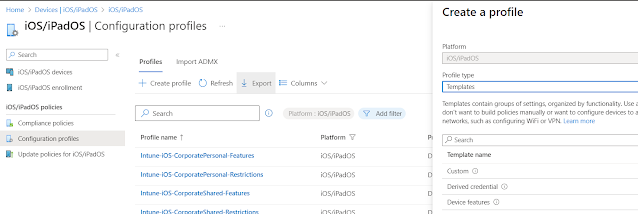
Configuring Microsoft Enterprise SSO Plug-In for Apple Devices: The Microsoft Enterprise SSO plug-in enables users to sign in to apps and websites that rely on Microsoft Azure Active Directory (Azure AD) for authentication, including Microsoft 365, using a single sign-on (SSO) process. This plug-in utilizes the Apple single sign-on app extension framework to minimize the number of authentication prompts that users receive when accessing devices managed by Mobile Device Management (MDM). Additionally, any MDM that facilitates configuring SSO profiles is supported. After configuring the Microsoft Enterprise SSO plug-in, apps that support the Microsoft Authentication Library (MSAL) automatically integrate with it. However, apps that don't support MSAL can also utilize the extension, such as browsers like Safari and apps that use Safari web view APIs. To do so, simply add the application bundle ID or prefix to the extension configuration. For example, you can enable a Microsoft a...

Mastering the Art of IT: Essential Skills to Jumpstart Your IT Career

People Skills  Client Communication The necessary end user communication required to effectively react to incidents, clarify issues and action tasks effectively. Effective communication with end users is crucial for resolving incidents, clarifying issues, and completing tasks efficiently. Here are some guidelines for communicating with end users: 1. Clear and concise communication: Ensure that your messages are clear, concise, and easy to understand. Use simple language and avoid technical jargon that the end user might not understand. 2. Active listening: Listen carefully to the end user's problem or concern. Ask questions to clarify the issue and repeat back to the end user what you have understood to ensure that you have captured the issue correctly. 3. Empathy: Show empathy and understanding towards the end user's frustration or concern. Acknowledge the issue and let the end user know that you are there to help. 4. Timely response: Respond to the end user's communicatio...

Mastering the Art of IT: Learn IT skills and prepare for IT interviews

Image
In today's world, technology plays an important role in our lives. From smartphones to laptops, we use technology every day. With the rise of digital transformation, the demand for IT professionals has increased significantly. If you are a student and looking to build a career in IT, now is the perfect time to start learning IT skills. In this blog, we will share some resources that can help you learn IT skills and prepare for IT interviews. LinkedIn Courses Collection LinkedIn Learning is a great platform to learn new skills, including IT skills. The platform offers a wide range of courses taught by industry experts. The LinkedIn Courses Collection includes courses on various IT topics, including web development, programming, cybersecurity, and data science. Whether you are a beginner or an experienced IT professional, you can find a course that fits your level. The courses are self-paced, so you can learn at your own pace. After completing a course, you will earn a certificate, w...

Import ACSC Windows Hardening Policies in Intune - Step by Step Instructions

Image
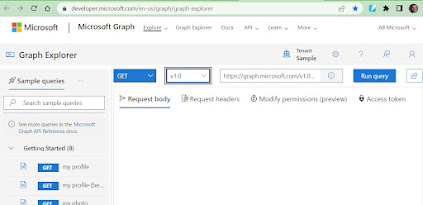
Step by Step instructions to create ACSC Windows 10 hardening settings in Intune using Graph API Microsoft have published Intune policies to comply with   Australian Cyber Security Centre's (ACSC) Windows 10 Hardening Guidance .    This policies are quite easy to import using graph explorer using official instruction provided at  https://github.com/microsoft/Intune-ACSC-Windows-Hardening-Guidelines.  However, this guide provides detailed steps by step instructions and screenshots to simply this process.  To import these settings in Intune follow these steps 1. Navigate to  Microsoft Graph Explorer . 2. Click on Sign in, login  using authorised privileges in respective tenant i.e. Global Administrator   3. You may get a prompt to accept the consent,   select  Consent on behalf of your organization then   click Accept. 4. Create a post request using Beta schema and type following query as shown in the screenshot, https://gr...